Guide
Beat pulse
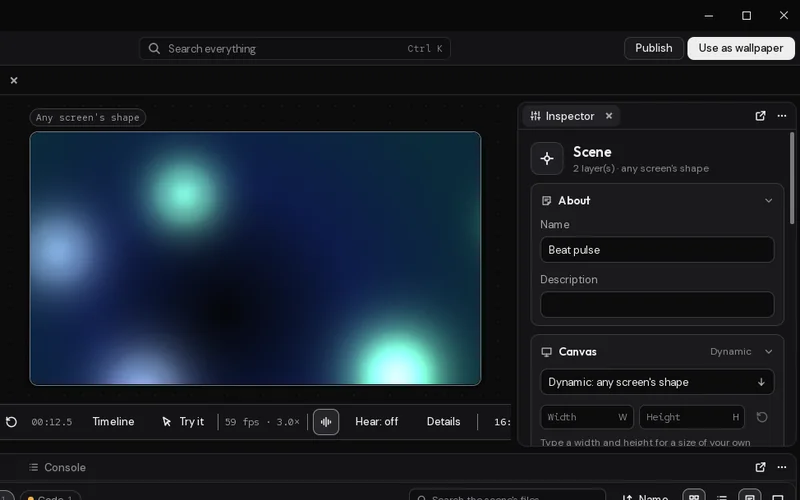
You'll end up with soft glowing lights that flare on every beat of whatever your computer is playing, then settle back until the next one. I show it twice: as a few lines of script, and as a three-node graph.
What you'll learn
- How scene.on with
"beat", or On Beat in a graph, runs each time Motion hears a beat of what's playing. - How an instant jump in Brightness followed by a smooth fall back over 0.35 seconds reads as a flash.
- Why a script that listens for beats is all Motion needs to know the scene uses the sound, and to listen while it's on screen.
What you need
- Hear what's playing turned on, in Motion Player's Settings › Sound and pointer. Motion only listens while a scene that uses the sound is on screen.
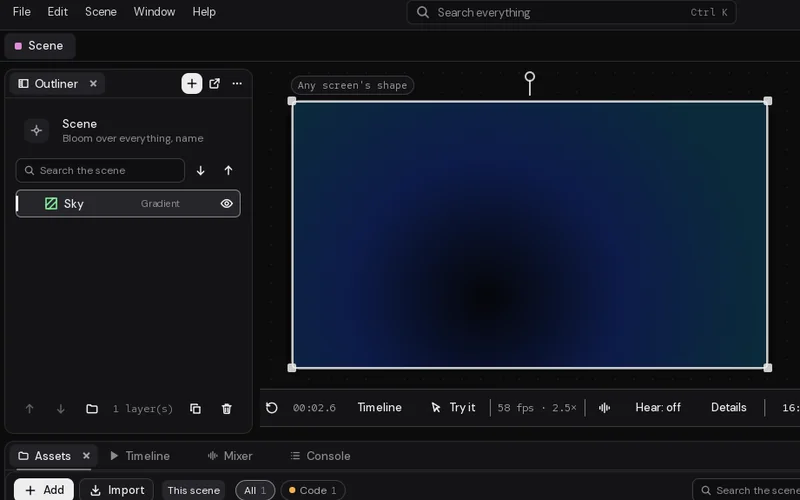
- A Gradient layer at the bottom, for something dark behind the lights. Mine is named Sky, Style Round, with a near-black First colour and a deep blue Second colour.
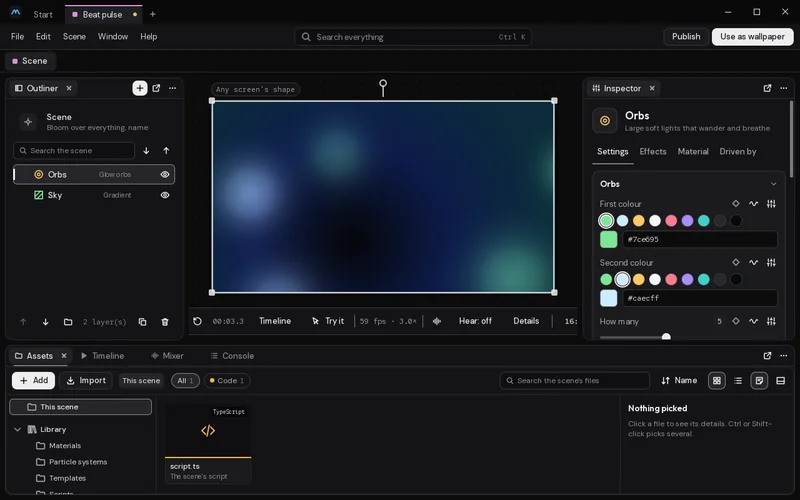
- A Glow orbs layer named Orbs:
| Setting | Value |
|---|---|
| How many | 5 |
| Size | 30% |
| Brightness | 60% |
| Blend | Light |
The script moves Brightness (its key is brightness). Whatever Brightness you set is where the lights rest between beats, so set it and the script to the same number.
How it's built
- On Studio's start page (Ctrl+N brings it back), click Empty scene under Start something new. It comes with a few layers to start from; delete them (pick each in the Outliner and press Delete). Click + in the Outliner's tab, search for "gradient", and add a Gradient. Double-click its name and call it Sky.
- Click + again and add Glow orbs. Call it Orbs and give it the settings above.
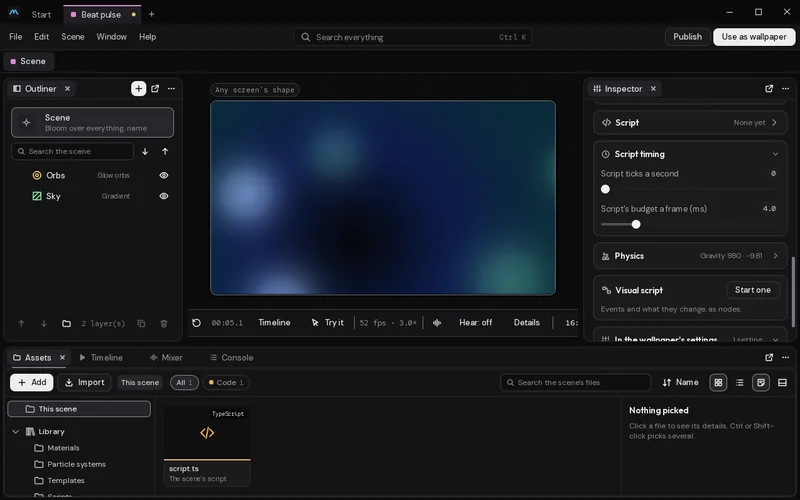
- Pick Scene at the top of the Outliner. Its settings hold the scene's logic: the Script card for code, and the Visual script card for a graph.
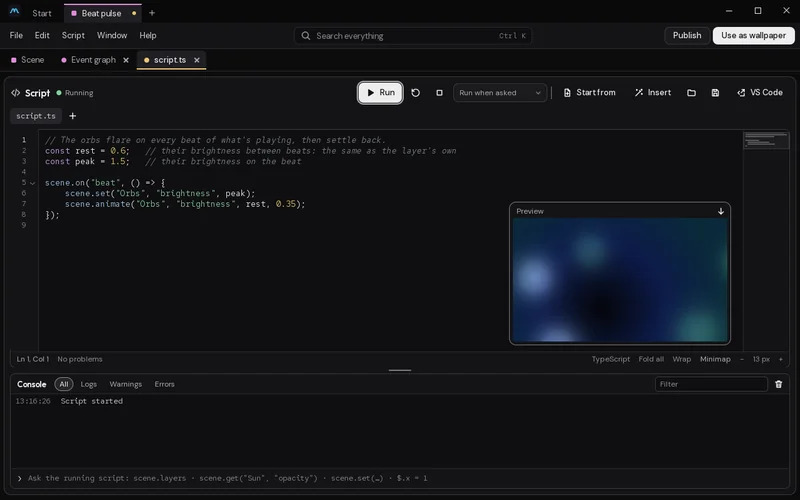
- For the script: on the Script card, click the card's title to open it, then Open the editor (or press Ctrl+Shift+E). The script opens as the
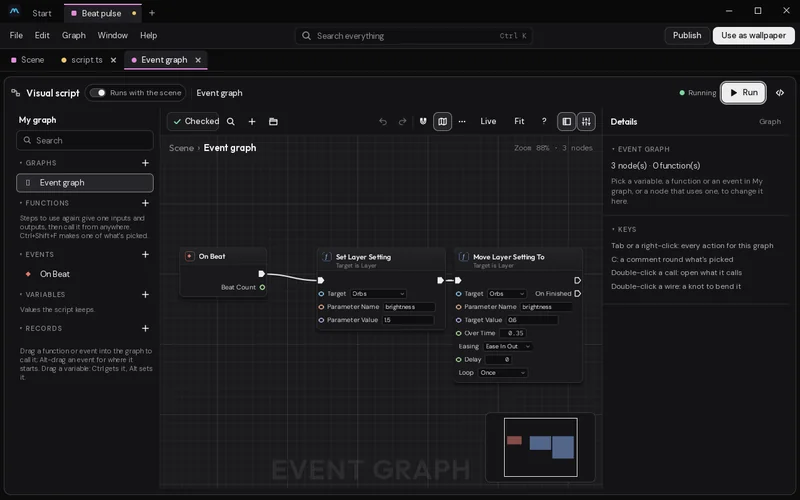
script.tstab, in the row under the toolbar. Paste the code below and click Run. - For the graph instead: click the Scene tab, at the start of that row, then click Start one on the Visual script card: the Event graph tab opens beside it. Press Tab (or right-click) to add nodes: On Beat, Set Layer Setting and Move Layer Setting To. Wire them as shown below, pick Orbs in each Target, and type the Parameter Name and the values in. Click Run.
- Click the Scene tab to see the preview, and play some music. No music to hand? Click the sound button under the preview until it says Pretend, for a made-up beat. Click Use as wallpaper, at the top right, when you're happy.
You only need one of the two. If you build both, they both run, and the orbs get told the same thing twice.
The code
// The orbs flare on every beat of what's playing, then settle back.
const rest = 0.6;   // their brightness between beats: the same as the layer's own
const peak = 1.5;   // their brightness on the beat

scene.on("beat", () => {
    scene.set("Orbs", "brightness", peak);
    scene.animate("Orbs", "brightness", rest, 0.35);
});
The graph
How it works
scene.on with "beat" runs the function each time Motion hears a beat. In the graph, On Beat is the same event.
On each beat, scene.set (Set Layer Setting in the graph) puts Brightness up to 1.5 at once. Straight after, scene.animate (Move Layer Setting To) carries it back down to 0.6 over 0.35 seconds. The jump is instant and the fall is smooth, so it reads as a flash.
Because the scene's script listens for beats, Motion knows the scene uses the sound and listens while it's on screen. When nothing is playing, there are no beats, and the orbs sit at their resting brightness.
If the beats come faster than 0.35 seconds apart, each new beat starts the fall again from the top. Shorten the seconds for fast music.
Make it yours
- Every fourth beat bigger. The function is given the beat's count (in the graph, On Beat's Beat Count output). Add a second kick on the downbeat:
scene.on("beat", (count) => {
    scene.set("Orbs", "brightness", count % 4 === 0 ? 2 : 1.4);
    scene.animate("Orbs", "brightness", 0.6, 0.35);
});- Change colour on the beat.
scene.set("Orbs", "colour", scene.hsv(scene.random(), 0.6, 1))picks a new hue each beat. See scene.hsv. - No script at all. Click ∿ beside Brightness, choose Follows The sound, Part Beat. That follows the beat's own rise and fall without any code, but you can't count beats or do something different on each one.
- A shape instead of orbs. Use a Shape layer and move its
glowsetting the same way.