DocsExample scenesPictures, pages and screens
Example scene · Pictures, pages and screens
Long Horizon
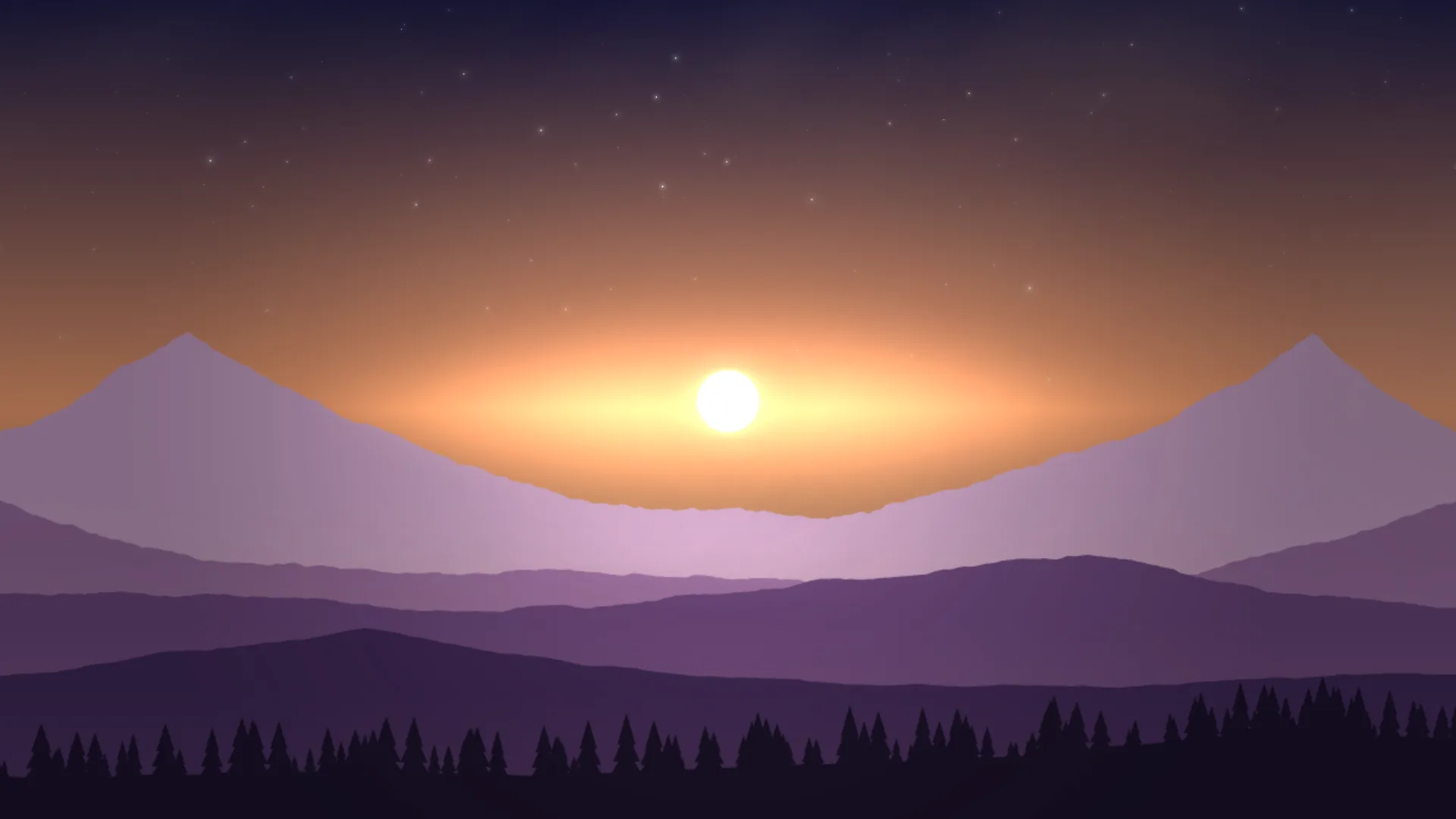
A dusk of layered mountains as wide as three screens side by side: a tall peak in each outer third, and in the middle a valley the sun is setting into. Spread across three monitors it's one long view; on a single screen, the middle third is a whole picture of its own.
Main feature: Screens: a scene made for spanning, with its own canvas. Also uses: The inspector (the scene's canvas and how it fits), Layers and folders (pictures, fog and stars), The pointer, clicks and time (depth as the pointer moves).
What you'll learn
- How a scene gets a canvas of its own size: 5760 by 1080, three Full HD screens side by side, with its layers laid out on that canvas, not on whatever screen it's drawn on.
- How Fill works on a screen of another shape: on one 16:9 screen it scales the canvas to cover the screen and cuts off what overhangs, the left and right thirds, so the scene is composed for the middle third to work alone, with the sun framed between two peaks.
- How spanning works: in Motion Player's Screens page, choose One across all screens, and the canvas is laid over your screens as your desktop arranges them, each showing its part.
How it's built
The layers, bottom to top: Sky, Stars, Afterglow, High cloud, Sun, Far range, Back range, Mist, Middle range, Near hills, Pine ridge, Vignette.
- Sky, a Gradient, then Stars, a Stars layer, and Afterglow, Glow orbs.
- High cloud, a Fog and clouds layer in the sky, and Sun, a Shape.
- Far range and Back range, the farthest ridges: each is a Picture or video with Fit set to Stretch across the whole canvas.
- Mist, a second Fog and clouds layer, between the ridges, then Middle range, Near hills and Pine ridge, the nearest, topped with a row of pines. Each ridge has a little more Depth (parallax) than the one behind it, so they slide past each other as the pointer moves.
- A Vignette on top.
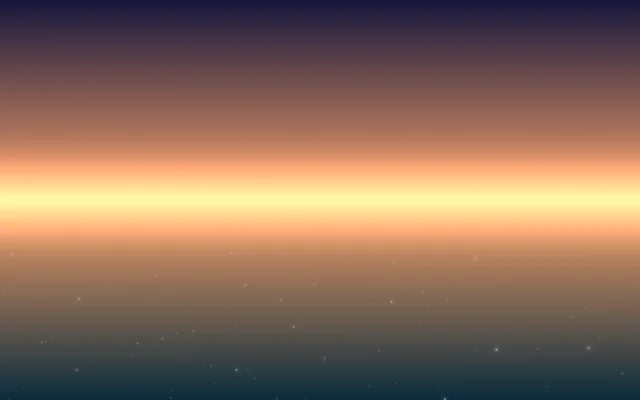
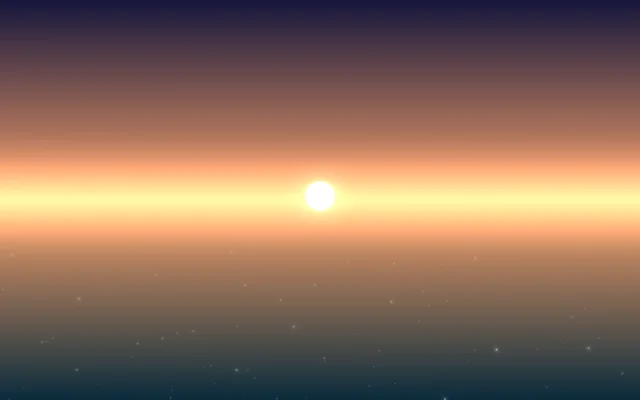
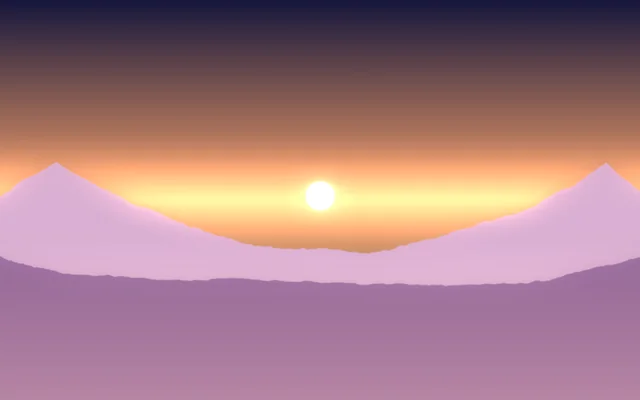
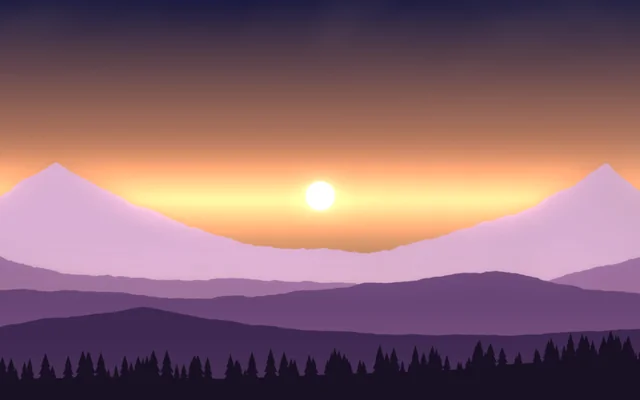
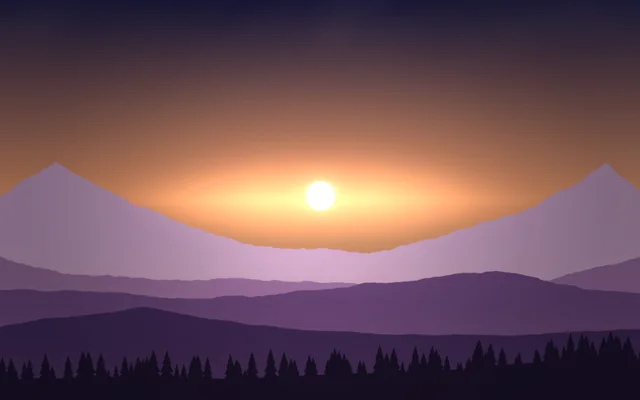
The five ridges, ridge1.png (the nearest) to ridge5.png (the farthest), are pictures in the scene's Assets panel (Alt+3). Each is a soft strip with a landmark in every third of the canvas, lighter and hazier the farther away it is. Small, soft pictures stretched across the canvas keep the scene light. The sky, sun, glow, stars, mist and clouds are Motion's own layers, which you change in the inspector.
Look in Studio
Open it from Studio's start page, under Start from one of Motion's. Pick Scene at the top of the Outliner and look at Canvas in its settings: 5760 × 1080, picked from Several screens (or Spanning all my screens for your own layout). Under it, On a screen of another shape is Fill, centred. Then click each ridge and look at its Depth under Interaction.
Make it yours
- Set Canvas to Spanning all my screens, then move each ridge (Left and right and Size, under Placement) so a peak stands on each of your monitors. Or use pictures of your own: drag them into Assets, pick a ridge and choose yours under File.
- Try Fit instead of Fill: on one screen you see the whole range, small, with bars above and below.
- Give the ridges cool blues and greys for a winter dawn: add a Tint or Colour balance effect to each ridge, or one Adjustment layer over them all.
- Birds over the valleys? A Flock across a canvas three screens wide costs more to draw than the rest of the scene together, so try it on one screen first.
Settings people can change
| Setting | What it does |
|---|---|
| The sun's height | Lifts the sun out of the valley, or sets it behind the hills |
| Mist in the valleys | How thick the mist between the ridges is |
| High cloud | How much cloud catches the light above |
| Stars | How many stars are out |
| The glow at the horizon | Apricot, rose, or the cold blue of the hour after sunset |
| Bloom | How much the bright parts bloom over everything |