The console
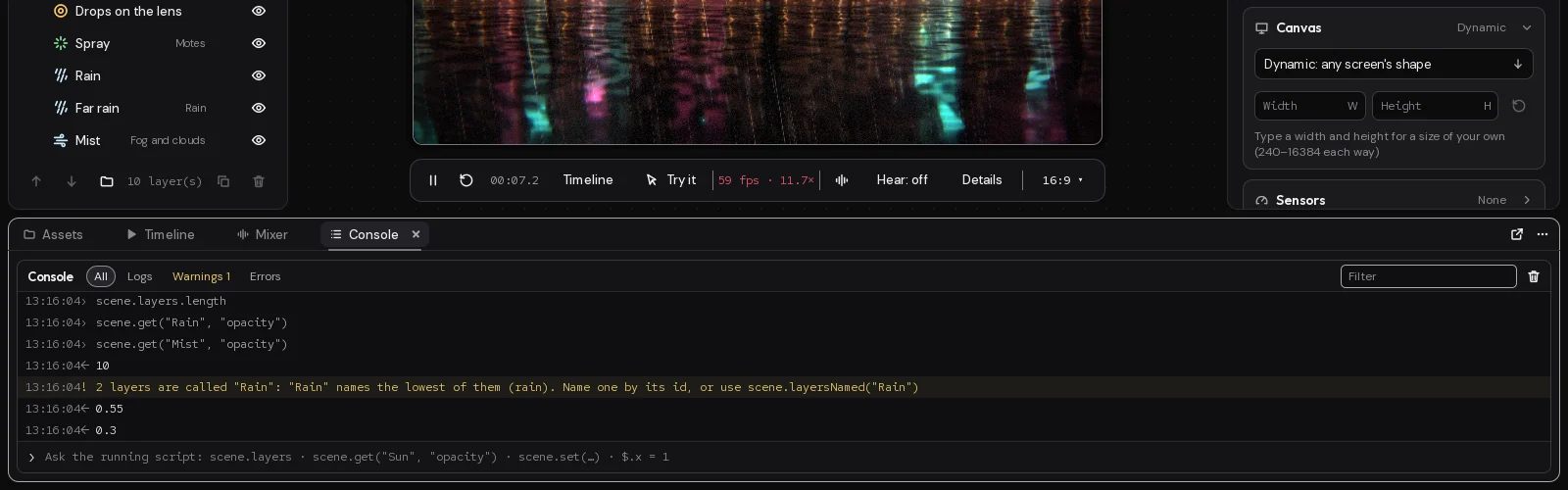
The console shows what the scene's logic says while it runs in the preview: its logs, its warnings and its errors. It also has a line where you can ask the running script things and change them on the spot. It's the Console tab in the dock under the preview.
Opening it
Click Console in the dock's tabs, or find "Console" with Ctrl+K. When the scene's logic has errors, the tab shows how many in red, so you see them even with the dock folded away.
The same log shows in two other places: beside the script in the code editor, and in the Script card when Scene is picked. They're one log: clearing it in one clears it in all.
What shows in it
Each line has the time it was said, in hours, minutes and seconds, and a mark for what kind of line it is:
| Mark | What it is |
|---|---|
| (none) | a log: what scene.log wrote, or a note from Studio |
| ! | a warning, from scene.warn or from Studio |
| × | an error: what scene.error wrote, or something that went wrong in the script |
| › | what you asked, on the line at the bottom |
| ← | the answer |
Warnings have a yellow wash and errors a red one. You can select the text of any line to copy it.
Studio adds a few lines of its own: Script started each time it runs, Stopped when you stop it, a problem the script has before it can run (with its line), and a note when saving brings an older scene up to date.
The console follows the newest line. Scroll back to read and it stays where you are; scroll to the bottom and it follows again.
It keeps the last 500 lines. Running the script again starts it empty, and so does opening another scene.
Errors and where they came from
An error that names a line ends with "(line 12)". Click Go to line 12 at the right of it to open the script in the code editor. The line is the one in your TypeScript, and an error from another file names the file too ("module.ts, line 4").
An error from a node in a visual script names the node instead. In the Event graph, the log under the graph's code marks those with ›; click one to open the graph it's in, with the error shown on the node. See Visual scripts.
Filtering
Along the top:
- All, Logs, Warnings and Errors show only those. Logs includes what you asked and the answers. Warnings and Errors show how many there are.
- Filter shows only the lines with the words you type.
- The bin clears the console.
Asking the running script
The line at the bottom runs what you type in the running scene, as part of its script, and shows the answer. Press Enter to run it.
scene.layers
scene.get("Sun", "opacity")
scene.set("Sun", "opacity", 0.5)- An expression shows its value: a number, a string in quotes, a list or an object.
- Several statements run in order, and the last one's value is the answer.
- A change you make, such as
scene.set(...), shows in the preview at once. It's not saved: running the script again starts from the scene as it is. $is a scratch object of the console's own, kept between questions:$.x = 1, then$.x * 2later.
Up and Down go back through what you asked before (the last 50).
The script has to be running to answer. If it isn't, the console says "Nothing's running to ask: run the script first" and the line's arrow is grey; press Ctrl+Enter to run it. The same goes after Stop.
What the script can do is in the scripting reference; Scripts is about writing one.
On the desktop
The console is Studio's: on the desktop, the wallpaper's logic runs the same way, but nobody is reading its log. If something works in Studio and not on the desktop, check that every website it reads is allowed in the Script card's Websites it may read. See When something's wrong.
Last changed 2 November 2026. Something wrong here? Tell us.