Logic as code
A scene can have a script: TypeScript that runs beside the wallpaper and changes it. A click fades a layer, the sky turns warmer at sunset, a text layer shows the weather. This page is about writing one in Studio.
Try it: Rain Harbour (a script that plays a sound), Constellations (a TypeScript script).
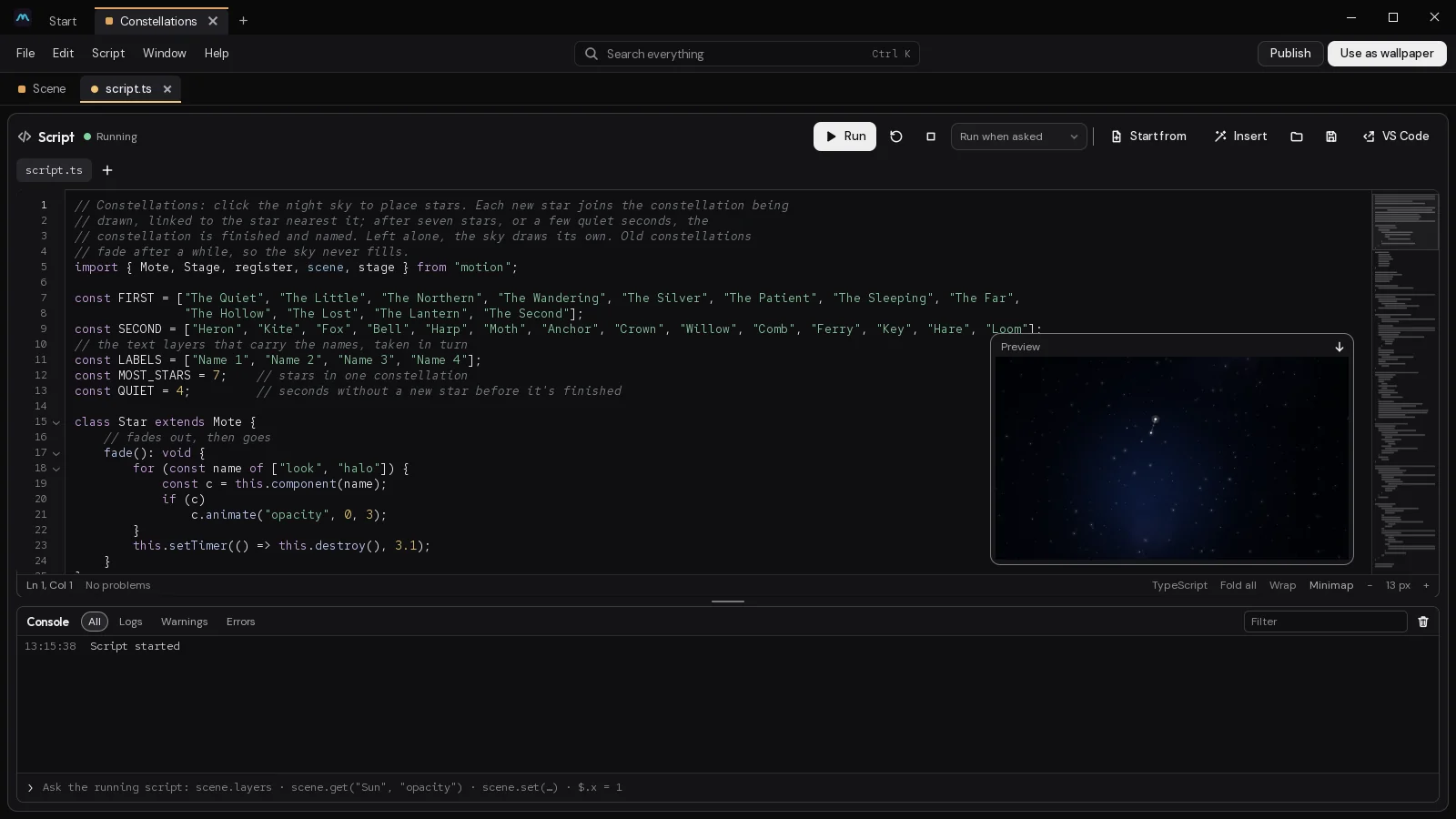
Where the script lives
Each scene has one script. Studio keeps it inside the scene, so it travels with the .motion file and plays wherever the scene does.
There are two ways in:
- The script opens as a tab of the scene, named after its file (
script.ts), in the row under the toolbar; the Event graph tab is the visual script. Both are the same scene's logic seen two ways. - Select Scene at the top of the Outliner. Its Script card shows the first lines, a Run button, the websites the script may read and what it last logged. Click the glance, or Open the editor, to open its tab.
Ctrl+Shift+E opens and closes the script editor from anywhere. In the command palette (Ctrl+K) it's Logic as code.
The editor fills the window under the tabs; Scene takes you back to the preview, and the tab's × closes the editor. F11 has it fill the whole screen.
Starting from something
You don't have to start from an empty page.
- Start from offers whole scripts that already do something: Beat pulse, Click ripple, Day and night colours, Cycle layers, Follow the pointer, Wander, Visits counter, Sound to colour and a few more. Each one is written for the layer you have selected.
- Insert puts a small piece in at the cursor: Every few seconds, On click, On each beat, Animate a setting, Read JSON from the web, Remember a value and others.
- The folder button opens your library. The save button keeps the script there, so any of your wallpapers can use it. Your library is in
%LOCALAPPDATA%\motion\library\scriptson Windows and~/.local/share/motion/library/scriptson Linux.
Running it
Run (Ctrl+Enter) runs the script in the preview from the top. The arrow beside it runs it again from the start, and the square stops it. The dot by the title says whether it's Running, Stopped, Running an older version (you've changed it since) or has problems.
The menu beside the stop button picks when it runs by itself: Run when asked, Run on save or Run as you type (a moment after you stop typing, as long as nothing is wrong).
On the desktop, the script starts when the wallpaper starts. Its top level runs once; after that it keeps going through what it handed to timers and events.
The editor
It's a proper code editor:
- Type
scene.and it lists everything a script can do, with a line of help for each. It knows your scene: it completes your layers' names, each layer's settings and their choices, the{names}your text layers fill, and the settings the wallpaper offers. - While you type a call, it shows what goes in each argument. Hover over a word for its help.
- Problems are underlined as you type and counted in the bar along the bottom. An error that happens while the script runs is marked on its line too, as "When it ran: ...".
- Ctrl+F finds, Ctrl+H replaces, Ctrl+G goes to a line, Ctrl+/ comments a line out. The bar along the bottom has word wrap, the minimap and zoom.
F12, or Ctrl and a click on a name, goes to where it's declared. The full reference is on this site: the scripting API.
In an editor outside Studio
The button along the top named after your editor (VS Code, or Open outside) opens the script in an editor outside Studio: VS Code when it's installed, with the scripting API's types beside the script so it completes and checks as Studio does, or else your system's editor for the file. Changes saved there come back into Studio, and changes made in Studio go to it. If the file changed in both places, Studio asks which to keep: Keep Studio's or Use the other editor's.
Which editor, and whether scripts and shaders always open there, are in Settings.
TypeScript
A script is written in TypeScript. It's checked as you type, with the types of everything a scene has (they're in motion.d.ts, which Studio reads beside your code), so a misspelt layer call or a number where words should go is underlined before you run it. Studio compiles it when it runs and when it saves. A script with problems is saved as you wrote it, and the wallpaper plays without it until they're fixed.
A scene whose script is JavaScript plays as it is. Studio makes its script TypeScript when you save it (your JavaScript kept as written, with a first line that turns the checking off), or straight away with Make it TypeScript above the code.
A script can have more than one file. The + beside script.ts adds another, which the script imports by name (import { greet } from "./greet"). Each file gets a tab; you can rename it or take it out.
The scene object
Everything a script does goes through scene. It's already there; you can also write import { scene } from "motion".
Layers are named by their name or their id. Settings are named by their key: hover over a setting in Studio to see it.
// change a setting at once, or move it there over some seconds
scene.set("Sun", "opacity", 0.5);
scene.animate("Sky", "colour1", "#123a24", 2);

// or hold on to one layer
const orbs = scene.layer("Orbs");
orbs.animate("x", 0.2, 3);

// fill {temp} in every text layer
scene.setVar("temp", "21°");
Besides the layers, scene reads the world: scene.clock (the hour, the day, how light it is outside), scene.weather (the conditions, temperature, wind, rain, cloud and daylight where the desktop is, the weather a Weather layer shows; scene.on("weather") hears it change, and scene.weatherAt("Tokyo") reads it at a place a Weather layer names), scene.audio and scene.beat (what's playing, when the computer listens), scene.pointer, scene.width and scene.height, and the settings the wallpaper offers with scene.prop. There are helpers for numbers and colours too: scene.random (repeatable with scene.seed), scene.lerp, scene.clamp, scene.mix and scene.hsv, and more in scene.maths and scene.colour.
Everywhere, time is in seconds, places on the scene go 0 to 1 from the top left (a mote's are the scene's pixels), turns are in degrees, and amounts go 0 to 1.
Names and ids
A layer is named by its id or its name. An id is checked first, then a name. Names can be shared; ids can't. When several layers share a name, that name means the lowest of them (the first in the Outliner), and the console says so once: name the one you mean by its id (hover over a layer in Studio to see it), or use scene.layersNamed to get them all.
A folder's name or id names every layer in it: scene.hide("Clouds") hides each of them. Hidden layers and locked layers are layers like any other to a script (locking is for the editor). scene.layers lists every layer with its id, name, kind and folder, and scene.folders the folders.
When something isn't there
A call about something that isn't there never stops the script: a layer no layer is called, one that was taken out, an effect a layer hasn't got, a mote without a body, an emitter a particle layer hasn't got. It does nothing, and the console says so once, however often it's asked. A move asked of a layer that isn't there gives false.
Mistakes in the call itself are errors, as they always were: an event there's no such thing as, a function where a number goes, an easing there's none of.
Reading what's drawn
scene.get gives what the script last set, or else what the scene started with. It doesn't know about keyframes, settings that follow the sound, or a move half way there. scene.read does: it gives the setting as it was last drawn. It's live from the turn after a setting is first read; until then it gives what get gives.
const cloud = scene.layer("Cloud");
scene.on("tick", () => {
    // the cloud's x as its keyframes have it now, to rain beneath it
    scene.set("Rain", "x", cloud.read("x"));
});
A layer knows where it is on the scene, too: layer.bounds is the box round it as last drawn (0 to 1, with its turn), and layer.contains(x, y) says whether a point is on it. scene.layerAt(x, y) gives the top layer drawn at a point. All of them are null (or false) until the scene has been drawn once, the turn after they're first asked.
Effects, shaders and copies
layer.effect(which) is one of a layer's effects, by its number in the stack, its name or its kind: set, animate, enable and disable it. Reordering the stack doesn't break a script that names its effects. layer.uniform("speed", 2) sets a Shader layer's own value, and layer.material("glow", 1) a material's.
scene.clone(layer) makes a copy just above it while the scene plays (1024 at most), scene.remove(layer) takes one out, and scene.bringToFront and scene.sendToBack move one above or below the others beside it. None of them changes the scene's file.
Events
scene.on runs a function each time something happens.
| Event | When | It hands you |
|---|---|---|
click | a click or tap on the wallpaper | x, y from 0 to 1, and the button (0 the main one) |
dblclick | two clicks close together | x, y |
press | a button pressed or let go | x, y, the button, and whether it's down |
drag | the pointer moves with a button held | x, y, how far since (dx, dy), the button |
wheel | the wheel turns | notches across and down |
pointer | the pointer moves over it | x, y from 0 to 1 |
hover | the pointer comes over the wallpaper, or leaves | true or false |
layerClick | a click lands on a layer | the layer's id, x, y |
beat | a beat of what's playing | the beat's count |
loud, quiet | the sound gets louder than a level, or stays quieter than one | how loud (loud) |
tick | each frame, or as often as the tick rate says | the time, and the seconds since the last tick |
minute, hourChanged, dayChanged | the clock's minute, hour or day changes | the hour and minute; the hour; the clock |
props | the wallpaper's settings were changed | all of them, by id |
pause, resume | it stops playing, or plays again | nothing |
resize | its size changes | width, height |
quality | how finely it's drawn changes | 0 to 1 |
sensor | a new reading of a sensor the scene reads | id, value, when, source |
media | what's playing on the desktop changes | as scene.media has it |
weather | the desktop's weather changes | as scene.weather has it |
calendar, system | the calendar's events change, or the load is read | as scene.calendar and scene.system have them |
moteClick | a mote is clicked | its id, x, y, and the mote |
moteEnter, moteLeave | the pointer comes over a mote, or leaves it | its id, and the mote |
hit, hitEnd | two motes' bodies start or stop touching | their ids, and the motes |
videoEnd | a Video layer's film goes round | the layer's id |
marker | the timeline passes a marker | its name and time |
key, pad | a key, or the gamepad, while the scene has the input | the key's code, whether down, whether it repeats, what it types; the buttons and axes |
captured | the scene is given the input, or it's taken back | true or false |
page | a web project's page sends something | the layer's id, and what |
There's no start event: the top of the script is the start. scene.on gives back a function that stops listening, and scene.off(event, fn) does the same. loud and quiet take their level (and quiet its seconds) as a third argument: scene.on("quiet", fn, { level: 0.05, seconds: 2 }). None of these events costs anything while nothing listens, and those that watch for a change (hover, loud, quiet, the clock's) look once a tick for everything listening.
scene.on("click", (x, y) => {
    scene.animate("Orbs", "x", x * 2 - 1, 0.5);
});

scene.on("beat", (count) => {
    if (count % 4 === 0)
        scene.animate("Glow", "opacity", scene.random(0.4, 1), 0.3);
});
Sensors are explained in Sensors and watches, web projects in Web.
Moves
scene.animate moves a number or a colour setting smoothly. It eases in and out unless you give it another easing, can wait before it starts, and can go round and round or there and back. It gives back a promise that's true when the move gets there, and false when it's stopped first (by scene.stopAnimating, a set of the same setting, or another move of it). So steps can follow one another:
await scene.animate("Moon", "y", 0.2, 4, { easing: "sineInOut" });
scene.animate("Glow", "opacity", 1, 1);
scene.animate("Lantern", "rotation", 8, 1.5, { easing: "sineInOut", loop: "pingpong" });
scene.animate("Title", "opacity", 1, 2, { delay: 3, easing: [0.2, 0.8, 0.2, 1] });
The easings are linear, step, sineIn, sineOut, sineInOut, easeIn, easeOut, easeInOut, expoIn, expoOut, expoInOut, circIn, circOut, circInOut, backOut, bounceOut and elasticOut (the logic graph's), a cubic Bézier's [x1, y1, x2, y2], or a drawn curve, { curve: [...] }. Motion moves it each frame, so a move costs the script nothing while it runs.
Timers
scene.every runs a function over and over; scene.after runs it once. Both give back an id for scene.cancel. They run at the first tick that's due, so they're as exact as the tick rate. The seconds come first, as they do in a mote's setTimer(seconds, fn); the function first works too, for both.
const clock = scene.every(1, () => {
    const c = scene.clock;
    scene.setVar("time", `${c.hour}:${String(c.minute).padStart(2, "0")}`);
});
scene.after(30, () => scene.show("Hello", false));
Sounds
A script can play sounds of its own, without a Sound layer. Load each with scene.loadSound at the top of the script: the file (WAV, OGG, MP3, FLAC, Opus or M4A, in the scene's folder) is decoded as the scene opens, so one loaded later (in a handler, or a timer) plays nothing, and the console says so once. Each play is a voice that can be turned down, panned, stopped with a fade, or crossed over to another sound.
const chime = scene.loadSound("sounds/chime.ogg");                    // the Effects bus
const rain = scene.loadSound("sounds/rain.ogg", { bus: "ambience" });

let shower = rain.play({ loop: true, volume: 0.6, fadeIn: 2 });
scene.on("click", () => chime.play({ pan: -0.5, rate: 1.2 }));
scene.after(60, () => shower.stop({ fadeOut: 3 }));
play takes volume (0 to 2), pan (-1 left to 1 right), rate (0.25 to 4: faster is higher), loop, fadeIn and offset (where it starts, in seconds). A voice has stop({ fadeOut }), setVolume, setPan, setRate, seek(seconds), playing, position (where it is, in seconds), ended (a promise of its end, played out or stopped), and crossfadeTo(otherSound, seconds), which gives the new voice. Read a voice with its properties; change it with its methods. Playing a voice costs the frame nothing: it's a message to the mixer.
const thunder = scene.loadSound("sounds/thunder.ogg");
const v = thunder.play({ rate: scene.random(0.8, 1.1) });
await v.ended;
scene.animate("Sky", "colour1", "#20263a", 4);
The files a script loads go with the scene: Motion finds them in its loadSound calls when it saves a .motion file or puts the scene on Motion Hub. A script that picks its file at run time can list what it might play instead: export const sounds = ["sounds/a.ogg", "sounds/b.ogg"];. In Studio, the script's entry in Assets lists the sounds it uses.
A Sound layer is played from a script with scene.sound("Name").play() (and stop, pause, resume, setVolume, setPan, fadeTo(volume, seconds); playing and time say how it is). Every sound, a layer's or a script's, plays through one of the mixer's buses.
Beside scene.audio, scene.beat and scene.spectrum, a script reads scene.waveform (64 samples, -1 to 1), scene.beat.bpm (beats a minute), scene.beat.onset (true just as a beat lands) and scene.band(lowHz, highHz) (how loud a band of pitches is). All of it is the sound the computer plays, as a whole: not one bus's.
Particles, video and 3D
scene.particles(layer) is a particle layer's system (Particle system, Motes, Rain, Fireworks, Pointer light, Fire and 3D particles):
const embers = scene.particles("Embers");
scene.on("beat", (n) => { if (n % 4 === 0) embers.burst(80); });
scene.on("click", (x, y) => embers.burst(40, { x, y }));
embers.setRate(scene.weather?.rain ? 0 : 20);
burst(count, at, emitter) fires up to 2000 at once, at the emitter or at a point of the layer (0 to 1); setRate(perSecond, emitter) and resetRate() change and give back how many it makes a second; pause() and resume() hold and let go its spawning (what's alive lives on), and clear() takes every particle away. alive says how many there are. A burst asked while the scene is paused, or before the layer is first drawn, waits for it; a burst still fires at a rate of 0.
scene.video(layer) is a Video layer's film: play(), pause(), seek(seconds) and setRate(rate) (0 holds it), and time, duration and playing. A layer a script plays, holds or seeks gets a film of its own, so another layer showing the same file goes on as it was. Seeking decodes from the frame before it: a few times a second is fine, every frame isn't.
// a time-lapse sky that always shows the time of day
const sky = scene.video("Timelapse");
sky.pause();
scene.every(60, () => sky.seek(scene.clock.day * sky.duration));
scene.camera(layer) is a 3D layer's camera: setOrbit, setHeight, setDistance, setFov (each with seconds to take, or at once) and lookAt(point, seconds). scene.pickItem(layer, x, y) gives, the next turn, which of its items is under a point and its mote.
The timeline
scene.timeline is the clock the scene's keyframes go by. Until a script touches it, it's the scene's own time. play(), pause(), seek(seconds) and setSpeed(k) take it over; release() gives it back. The markers you put on the timeline (Marker in the Timeline's bar) are timeline.markers, and scene.on("marker") hears each as the timeline passes it. Waves and the rest of what moves by the scene's time go on as they were.
The pointer, the keyboard and where it runs
scene.pointer has buttons (a bit each: 1 the main one, 2 the second, 4 the middle), down and speed (the scene's width a second) beside where it is. A scene that wants the keyboard asks with scene.requestInput(), as a game layer does; the person gives it with a click on the scene's Play, and only then does the script hear key and pad. scene.captured says whether it has them, and scene.releaseInput() gives them back. A wallpaper on the plain desktop never hears what's typed.
scene.fps is the frames a second it's drawn at now, scene.isPreview whether it's in Studio's preview, scene.platform "windows", "linux" or "android", scene.locale the person's language ("en-GB"), and scene.screen which screen this is, of how many. scene.storeFor("screen") keeps values for this screen alone, beside the scene's own scene.store.
What the desktop knows
The scene reads what a Now playing, System monitor or Calendar layer would show:
scene.mediais what's playing (its title, artist, album, cover, whether it plays, where it was and how long it is), andscene.mediaPosition()where it is now.scene.on("media")hears it change.scene.systemis the computer's load: its processor, memory, swap and disk (0 to 1), temperature, network, battery and whether it's charging.scene.calendaris the next days' events, each its title, start and end (ms) and whether it lasts all day. Your events never leave this computer, so a scene that could send them elsewhere isn't given them: one that names websites it may read, or has a Webpage, Web project or Scene layer, getsnull, and the console says why.
Motion asks the desktop for each only when the script reads it.
Maths and colour
scene.maths has what the logic graph's maths nodes have: noise and noise2 (smooth noise), smoothstep, remap, ease, wrap, pingPong, damp (a value followed toward another, the same at any frame rate), degrees and radians. scene.colour has mix, fromHsv, toHsv, lighten, saturate, opposite and fromKelvin (the colour of light at a temperature). A module can import them as maths and colour from "motion".
scene.on("tick", (t, dt) => {
    scene.set("Firefly", "x", 0.5 + 0.3 * scene.maths.noise(t * 0.2));
    scene.set("Sky", "colour1", scene.colour.fromKelvin(scene.lerp(2000, 6500, scene.clock.daylight)));
});
The tick rate
By default the script hears every frame. scene.tickRate sets how many ticks a second it hears instead; fewer is lighter. The same setting is in the scene's settings, under Script timing, as Script ticks a second (0 is every frame).
scene.tickRate = 10;Script timing also has Script's budget a frame (ms), 4 unless you change it. A script whose ticks take longer than that is heard every second frame, or every fourth or eighth, until its ticks are quick again. The drawing never waits for it.
The store
scene.store keeps values from one run to the next: a count of visits, the last colour someone picked. It's kept on this computer only.
const visits = scene.store.get("visits", 0) + 1;
scene.store.set("visits", visits);
scene.setVar("visits", `${visits} visits`);
It holds up to 64 values, 256 KB in all, and a key is at most 64 letters. Lists and objects are fine. remove, keys and clear do what they say.
Reading the web
scene.fetch reads from a website, but only from the sites the scene names. They're listed under Websites it may read on the Scene's Script card (api.example.com, *.example.org). When you write a scene.fetch with an address in it, Studio adds that site for you.
Naming a site isn't enough on its own: each site also has to be allowed on this computer. The card shows each one as Allowed, Refused or Not allowed yet, with an Allow button. Someone who uses your wallpaper is asked about each new site when the scene is first shown, and can change their mind in Motion Player's settings. A script reaches a site only over HTTPS, without anyone's cookies or sign-ins, and never the computer itself or its network. It can GET, POST or HEAD, up to 30 times a minute; it sends 256 KB at most, and an answer bigger than 4 MB is refused.
scene.fetch("https://api.example.com/now")
    .then((r) => r.json<{ value: string }>())
    .then((data) => scene.setVar("now", data.value))
    .catch((e: Error) => scene.warn(e.message));
The console
scene.log, scene.warn and scene.error write to the console under the code, and to the Console tab in the dock. You can also type an expression into it and the running script works it out. See Console.
The sandbox
A script can't hurt the computer or the wallpaper:
- It runs on a thread of its own, so a slow script never slows the drawing.
- It sees
sceneand the language itself, and nothing else: no files, no other programs, no way to make code from text. The calendar stays on the computer, and the keyboard reaches it only when the person gives it. - It reaches the network only through
scene.fetch, and only the allowed sites the scene names. - A loop that runs for more than three seconds stops the script, with a line in the console saying so. The wallpaper keeps playing.
Classes, decorators and pins
A script can have classes for objects (motes, as the script calls them) that move, tick and get clicked. The "motion" module gives you Mote, Stage, Vector2, Vector3, Signal and some decorators. The decorators tell Studio how to show and run the class:
@placeable()offers a mote class as a template to place, in the Outliner's Add an object….@property()on a field shows it in the object's settings, withmin,max,unitandlabelif you give them.exposed: trueoffers it in the wallpaper's settings,saved: truekeeps it between runs.@callable()on a method makes it a node in the visual script;@callable.pure()makes a node with no exec pins.
A callable's pins come from its signature. Each parameter is an input, its type gives the pin its colour (Seconds, Colour, Layer, Int), Ranged<0, 1> gives it a slider, and a doc comment is the node's help. Units and values lists them all, and what each gives the pin.
import { Mote, Seconds, Ranged, placeable, property, callable } from "motion";

/** A firefly that drifts about. */
@placeable({ category: "Garden" })
export class Firefly extends Mote {
    @property({ min: 0, max: 400, unit: "px/s" }) speed = 60;

    onTick(dt: Seconds): void {
        this.addOffset({ x: this.speed * dt, y: 0 });
    }

    /** Turns it a little, now and then. */
    @callable({ category: "Garden" })
    wobble(amount: Ranged<0, 1> = 0.5): void {
        this.addRotation(amount * 30);
    }
}
Objects, templates and their components are explained in Objects and templates.
Last changed 2 November 2026. Something wrong here? Tell us.