Publishing to Motion Hub
When a scene is ready, Studio's Publish page sends it where it's going: your own desktop, a .motion file, or Motion Hub, where everyone with Motion can find it. The same page is where you decide which of the scene's settings people can change, and how those settings read.
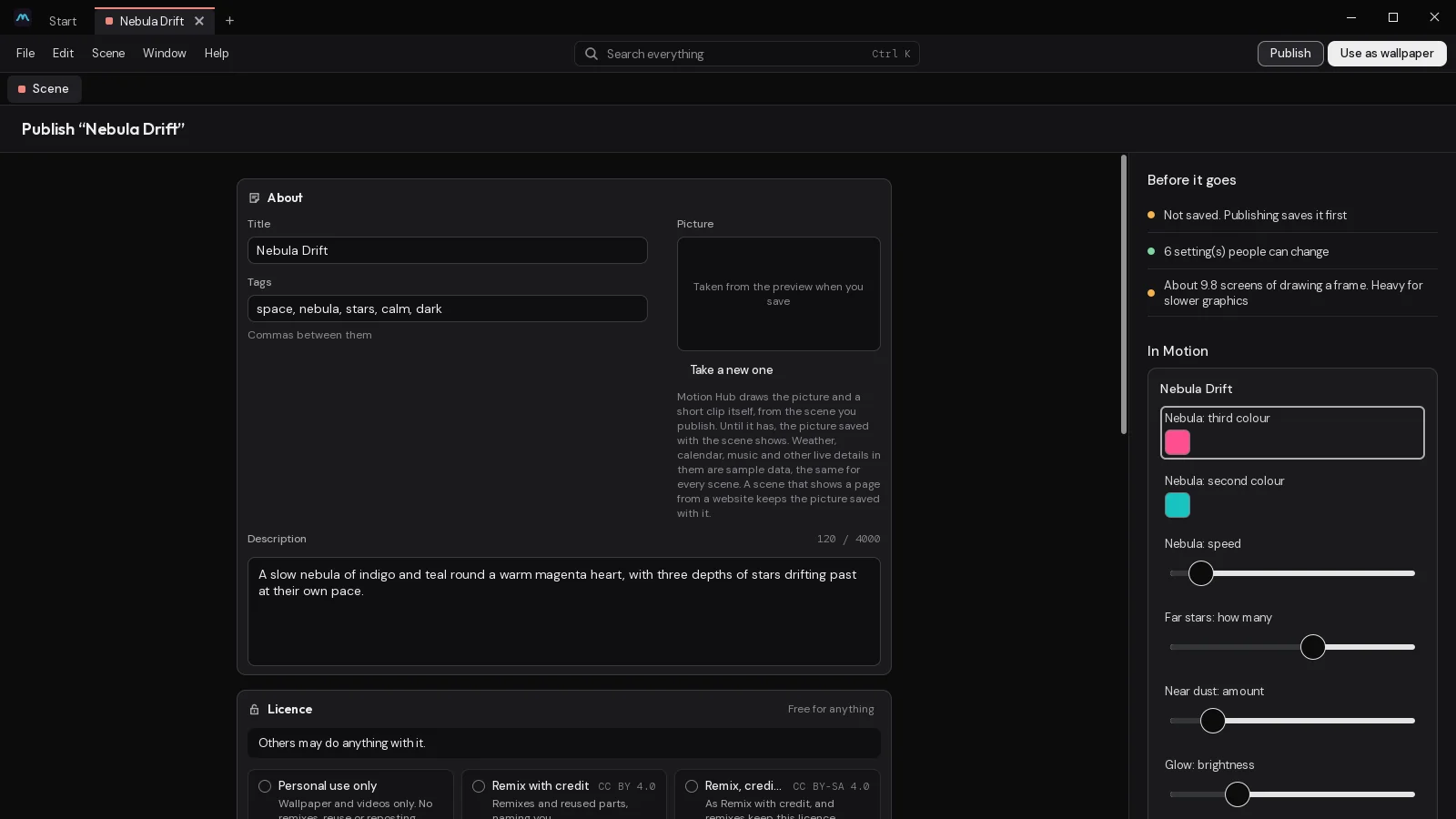
Open Publish
Click Publish at the top of Studio (in a narrow window it's in the ⋯ menu, as Publish…). It covers the editor with two pages: Where it goes and Settings people can change. Click Publish again to go back to editing.
Where it goes
Three cards. Do one, two or all three.
- Use as wallpaper: on this computer. Pick Same on every screen, or with more than one screen, Across all, as one or a single screen. Open Motion Player opens Motion Player to say what each screen shows.
- Save as a .motion file: one file with everything the scene needs, to share or keep. Save folder as .zip… saves the scene's folder as it is instead. See Sharing scenes.
- Motion Hub: below.
Before it goes out
Down the right, Studio lists what's worth a look before the scene leaves your computer. None of it stops you publishing.
- Whether it's saved. Publishing saves it first.
- Hidden layers. They go too, unseen.
- Whether it runs a script, and how many websites it reaches. People who bring it in are asked about these.
- How many settings people can change.
- About how much drawing it costs a frame, in screens. Over eight is heavy for slower graphics, and Studio says so. Performance has ways to bring it down.
Licence
Under the three cards, the Licence card says what other people may do with the scene: remix it, reuse its parts, pass the file on, show it in videos. Pick a preset (Personal use only unless you choose another) or Custom…, and list any files in it that someone else made. It goes with the scene, in its .motion file and on the Hub. Licences explains each choice.
Sign in
Studio uses your Motion Hub account, the same one Motion Player uses. Publishing needs an account that owns Motion, as Studio does. If you're not signed in, the Hub card has Sign in to Motion Hub.
- Click it. Your browser opens at Motion Hub, and Studio shows a code.
- Check the Hub's page shows the same code, then approve it. You can sign in with Discord, Google or Steam, or with an email and password, and make an account on the same page if you haven't one.
- Studio carries on as soon as it's approved.
Sign out is on the same card.
Put it on the Hub
The card has three boxes, filled in from the scene:
- Title: what the Hub shows it as. It starts as the scene's name.
- Description: a line or two about it: what it does, what it moves to.
- Tags: words people search by, such as
rain, night, music. Up to twelve count.
Click Publish. Studio keeps the title, description and tags in the scene, saves it, packs it into a .motion file and sends that. The button says Publishing… while it goes. When it's done, the card says Published on Motion Hub, with the scene's address, Open on Motion Hub and Copy link; if it didn't go, it says Not published and why, with Try again.
What gets sent
Exactly what File › Export a Motion file (.motion)… would make: the scene, and only the files it uses (pictures, videos, models, fonts, web pages, baked shaders), with its preview. Files in the scene's folder that nothing uses stay behind. A scene can be 100 MB at most.
The preview is the picture of the scene Studio takes each time it saves, as the preview shows it then. To choose what it looks like, stop the preview on a good moment and save before you publish.
The picture and clip on the Hub
Motion Hub draws the picture and a short clip itself, from the scene you publish. It plays the scene on Motion Hub's own computers, as Motion Player would, a few seconds in, with nothing reaching the network, so what people see in lists is what the scene really draws. Until it has, the picture saved with the scene shows; that's usually a minute or so. If the Hub can't draw a scene, the picture saved with it stays.
Weather, calendar, music and other live details in them are sample data, the same for every scene. The Hub gives every scene the same pleasant sample of what only your desktop knows (a sunny 22 °C with a week's forecast, a couple of events, a song playing, calm system and sensor readings) at the same moment, so a scene that shows them looks alive and looks the same for everyone. On your own desktop it shows yours.
A scene that shows a page from a website keeps the picture saved with it. The Hub draws with nothing reaching the network, so the page would be blank. The same goes for a page inside the scene that's let reach websites. A page you made and keep inside the scene (Studio packs it into the file) needs no network otherwise, and is drawn. A scene with something the Hub can't draw yet keeps its saved picture too.
A clip or pictures of your own show instead. On the Hub's page for the scene, open More, then Edit details and Licence, pictures, who sees it: its Previews step takes a clip (MP4 or WebM, up to 12 seconds and 20 MB) and up to six pictures (PNG, JPEG or WebP, up to 8 MB each), and one of them can be the cover lists show.
What the Hub takes
The Hub checks every file as it arrives, with the same reader Motion uses to open one. It takes scenes made from layers in Studio. It doesn't take scenes written by hand outside Studio, which Motion can't keep in its sandbox, and it won't take a file you've already published ("You've published this one already"). A wallpaper brought in from another program belongs to its maker, so Studio doesn't offer to put it on the Hub; you can still use it and save it as a .motion file.
Scripts and websites are fine. The Hub reads from the scene what it does (whether it moves to sound, follows the pointer, reaches websites, reads sensors), shows that on its page, and Motion asks people about scripts and websites before the scene plays.
The Hub doesn't scan scenes for malware. Motion's sandbox limits what a scene's scripts and web pages can do, and moderators act on reports. Every scene keeps to the Community rules.
Who it's for
Who is this for? asks for the scene's rating: Everyone, Mature or Explicit, and whether it Has fast flashes or was Made with AI. There's no default: pick the one that fits. Content ratings says what each covers.
Settings people can change
Beside each setting in Studio is the sliders button, which offers it in the wallpaper's settings. The second page of Publish gathers every offered setting in one place: from layers, effects, the scene, and variables in the Event graph.
- Offered settings, on the left, in the order Motion shows them. Earlier and Later move one up or down.
- In the middle, In Motion: a preview of the settings card, grouped and labelled as people will see it. Changing these here changes nothing.
- On the right, the picked setting's details:
- Label: what it's called. Empty, it keeps the setting's own name.
- Help: a line shown under the label.
- Show only when: shows it only while another setting is set a certain way.
- Group: settings with the same group sit together under a heading, such as Look or Behaviour.
- Lowest, Highest and Step, for a slider. People can't go past these, even where the setting itself allows more.
- Stop offering it.
A good set is short. Five settings that matter beat twenty that don't.
Update a published scene
If the scene is already on the Hub, the button says Update on Motion Hub. Say what changed under What changed, and it goes up as a new version: an update keeps its likes, comments and address, and leaves the title, description and tags on the Hub as they are. Publish as a new scene instead makes a separate one.
An update from Studio goes out at once, and the people who have the scene are told there's a new version. To choose, use New version in the scene's More menu on the Hub's website instead: it can Save draft so you can look at it before anyone else sees it, and Tell people who have it can be turned off. Edit details, in the same menu, changes its title, description and tags without a new file (and gives them in other languages: see Motion Hub in your language), and Versions lists every version and what changed. Versions and their history says how to compare two, choose which Motion releases each works with, and make an older one current.
To make a scene with other people, invite them as co-authors: see Co-authors and groups.
See Motion Hub for finding and bringing in scenes from the Hub in Motion Player.
Badges on your page
Your page on the Hub shows badges for what you've done there, never for likes, followers or downloads. Each badge rises through four tiers as you do more of its thing: Spark, Glow, Flare and Nova. It shows the highest tier you've reached, as in Maker · Flare. Click one to see what it's for and what the next tier needs.
| Badge | What counts | Spark, Glow, Flare, Nova |
|---|---|---|
| Maker | your public published scenes | 1, 5, 15, 40 |
| Remixer | your published remixes of other people's scenes | 1, 5, 15, 40 |
| Co-author | published scenes made with a co-author | 1, 3, 10, 25 |
| Sensor smith | your published scenes that read sensors | 1, 3, 10, 25 |
| Translator | translations of your scenes into the Hub's languages | 1, 5, 15, 40 |
| Staff pick | your scenes the Hub's team featured | 1, 3, 8, 20 |
| Challenger | your challenge and jam entries | 1, 5, 15, 40 |
| Challenge pick | your entries marked Picked | 1, 3, 8, 20 |
| Jam podium | top-three places when a jam's voting closed | 1, 2, 5, 10 |
| Learn author | your tutorials published on Learn | 1, 3, 8, 20 |
| Docs author | your tutorials promoted into the docs | 1, 2, 5, 10 |
| Path finisher | learning paths you finished | 1, 3, 6, 10 |
| Helper | your forum answers in Help marked as the solution | 1, 10, 30, 100 |
| Good eye | your feedback marked as the answer in Feedback wanted | 1, 10, 30, 100 |
| Devlogger | weeks in which you posted a devlog | 1, 5, 20, 50 |
| Member | years on the Hub | 1, 2, 3, 5 |
| Bug hunter | bugs you reported that were fixed, given by an admin | 1, 3, 10, 25 |
Founding member has a single tier, for the accounts made in the Hub's first days.
Only what's still up counts, so if a scene is taken down or a tutorial hidden, a tier can fall, and it comes back if the thing does. You're told once when a badge reaches a tier for the first time. Your badges show on the forum too, beside your posts and on your profile.
Last changed 2 November 2026. Something wrong here? Tell us.